
Campaign URL Builder GA4: 2026 UTM Link Tracking Guide
Build error-free GA4 campaign URLs with our complete UTM link builder guide. Master parameter rules, avoid Unassigned traffic, and get clean attribution.
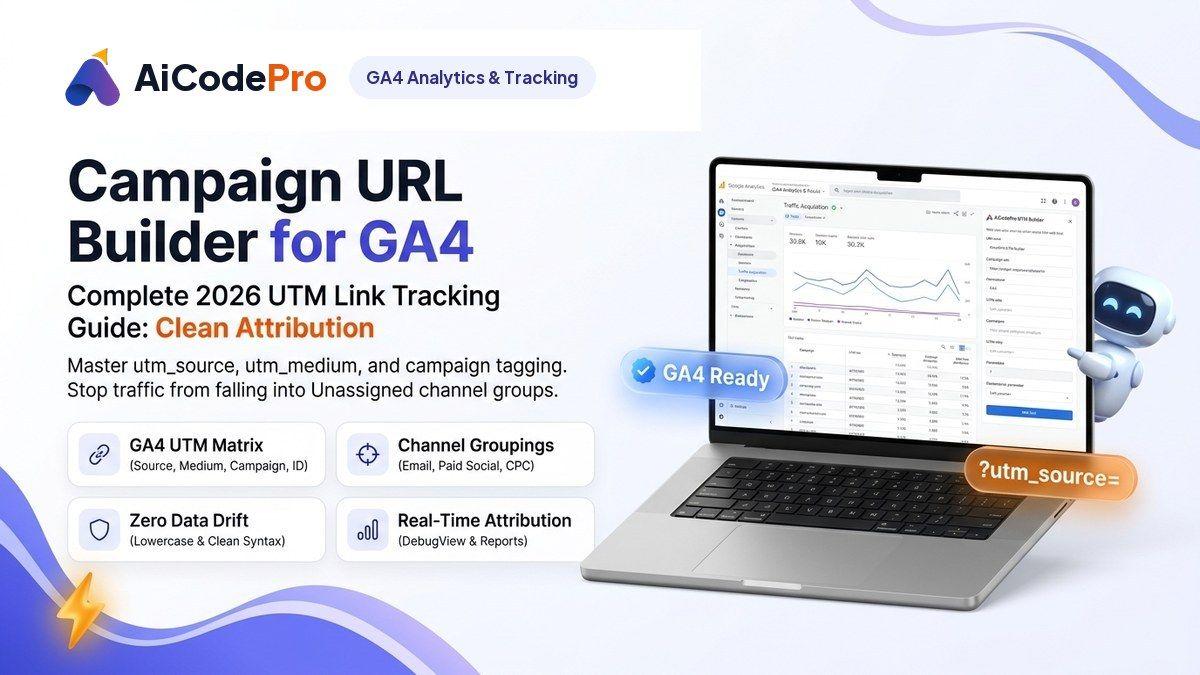
utm_source, utm_medium, utm_campaign, and utm_id) to destination links. When clicked, Google Analytics 4 reads these tags to accurately attribute sessions, conversions, and revenue to specific marketing channels, preventing traffic from defaulting into "Unassigned."
Accurate marketing attribution is the difference between scaling profitable acquisition channels and burning ad spend on dark traffic. In Google Analytics 4 (GA4), attribution relies fundamentally on properly structured Campaign URLs tagged with UTM (Urchin Tracking Module) parameters.
However, moving from Universal Analytics (UA) to GA4 introduced strict schema requirements, new campaign dimensions, and stricter Default Channel Grouping rules. A single typo, improper capitalization, or mismatched medium will dump thousands of paid clicks into the dreaded "Unassigned" bucket.
In this definitive guide, we break down how to use a Campaign URL Builder for GA4, the complete 2026 UTM parameter matrix, exact channel grouping syntax rules, and an automated spreadsheet formula to guarantee zero data drift across your marketing team.
1. What is a Campaign URL Builder for GA4?
A Campaign URL Builder (also known as a UTM link builder) is a utility that systematically appends query string tracking parameters to the end of your landing page URLs.
When a user clicks a campaign link across an email newsletter, Meta ad, LinkedIn post, influencer bio, or PDF whitepaper, Google Analytics 4 parses the query string upon page load. It binds those parameters to the user's initial session, mapping the source, medium, campaign name, ad creative, and target keyword directly into your acquisition reports.
Anatomy of a Tagged GA4 Campaign URL
A standard GA4 campaign URL consists of the destination address followed by a question mark (?) and key-value pairs separated by ampersands (&):
https://www.aicodepro.com/tools/utm-link-builder?utm_source=linkedin&utm_medium=paid_social&utm_campaign=q1_growth_launch&utm_content=carousel_v2&utm_id=camp_7894
Here is how GA4 reads each component:
- Destination URL:
https://www.aicodepro.com/tools/utm-link-builder(where the user lands) - Query Delimiter:
?(signals the beginning of tracking parameters) - utm_source:
linkedin(identifies the referrer or publisher platform) - utm_medium:
paid_social(identifies the overarching marketing channel) - utm_campaign:
q1_growth_launch(identifies the strategic initiative) - utm_content:
carousel_v2(identifies the creative variant for A/B testing) - utm_id:
camp_7894(identifies the unique campaign ID for cost data imports)
2. The Complete GA4 UTM Parameter Matrix (UA vs. GA4)
Universal Analytics relied on five classic parameters. Google Analytics 4 expanded this framework with dedicated dimensions for campaign IDs, source platforms, creative formats, and marketing tactics.
The following matrix outlines every parameter supported by GA4, its requirement status, and where it surfaces in reporting:
| UTM Parameter | Required in GA4? | Purpose & Definition | Syntax Example | Surfaces in GA4 Standard UI? |
|---|---|---|---|---|
utm_source | Yes | Identifies the specific platform, publisher, or vendor delivering the click. | google, newsletter, meta, linkedin | Yes (Session source) |
utm_medium | Yes | Identifies the high-level marketing or advertising mechanism. | cpc, paid_social, email, affiliate | Yes (Session medium) |
utm_campaign | Yes* | Identifies the individual product promo, sale name, or strategic campaign. | summer_sale_2026, lead_magnet_v1 | Yes (Session campaign) |
utm_id | Recommended | Unique campaign identifier used to stitch ad network cost and impression data imports. | camp_10492, meta_retarget_01 | Yes (Session campaign ID) |
utm_term | Optional | Captures target paid search keywords or audience segment tags. | seo_automation_tools, d2c_founders | Yes (Session manual term) |
utm_content | Optional | Differentiates ad creative formats, CTA button colors, or multiple links in one email. | header_cta, sidebar_banner, v1_video | Yes (Session manual ad content) |
utm_source_platform | Optional | Identifies the buying or management platform that controls budget and targeting. | search_ads_360, manual | Yes (Source platform) |
utm_creative_format | Optional | Specifies the ad asset type (e.g. video, carousel, display). | video, carousel, native | BigQuery / Schema only |
utm_marketing_tactic | Optional | Specifies the funnel targeting objective (e.g. prospecting, retargeting). | prospecting, retargeting | BigQuery / Schema only |
*Note: GA4 documentation specifies that at least utm_campaign or utm_id must be present, but standardizing both is industry best practice.
3. How to Avoid the "Unassigned" Trap (GA4 Default Channel Grouping v2)
The most common complaint from analytics teams in GA4 is seeing 20% to 50% of traffic classified as "Unassigned".
In GA4, the Default Channel Grouping does not use machine learning; it uses strict, regex-based rules. If your utm_medium or utm_source contains an unexpected character, space, or non-standard term, GA4 cannot classify it and places it into "Unassigned."
Use this verified mapping reference when building your campaign URLs:
Official GA4 Channel Mapping Rules
| Desired Channel Group | Required utm_medium | Acceptable utm_source | Avoid These Mistaken Formats |
|---|---|---|---|
| Paid Search | cpc, ppc, retargeting | Search engines (Google, Bing, Yahoo, Baidu) | paidsearch, adwords |
| Paid Social | paid_social, paid-social, cpc | Social sites (Meta, Instagram, LinkedIn, X, TikTok) | socialpaid, paidsocial |
| Organic Social | social, social-network, sm | Recognized social platforms | social_media, post |
email, e-mail, e_mail | Any valid sender identifier (e.g., klaviyo, substack) | newsletter (as medium), mail | |
| Paid Other | cpc, ppc, paid | Any non-search, non-social platform | ads, sponsored |
| Display | display, banner, expandable | Ad networks or publisher sites | banner_ad, cpm |
| Affiliates | affiliate, affiliates | Partner name or affiliate network | partner, aff |
Critical Rule: Never use
utm_medium=newsletter. Setutm_source=newsletterandutm_medium=email. If you useutm_medium=newsletter, GA4 will designate the entire campaign as Unassigned.
4. The 7 Deadly UTM Mistakes That Destroy Attribution
Even seasoned growth marketers make subtle errors that skew conversion rates and break lifetime value (LTV) models. Here are the seven most damaging pitfalls:
1. Tagging Internal Links with UTMs
The Disaster: Placing UTM links on homepage banners, footer navigation, or related blog posts pointing to other pages on your own website.
Why it breaks: When a user clicks an internal link with UTMs, GA4 abruptly terminates the original session and spawns a brand new session. The initial referral source (e.g. Google Organic or Meta Ads) is wiped out, artificial bounce rates spike, and conversion credit is stolen by internal navigation.
The Fix: Use GA4's native Internal Promotion Tracking (view_promotion and select_promotion events) for on-site banners.
2. Mixed Casing
The Disaster: Using utm_source=Facebook in one campaign and utm_source=facebook in another.
Why it breaks: GA4 is strictly case-sensitive. It treats Facebook, facebook, and FACEBOOK as three distinct acquisition sources, fragmenting your reports.
The Fix: Enforce a strict all-lowercase rule on every single parameter.
3. Using Spaces Instead of Hyphens or Underscores
The Disaster: Tagging utm_campaign=black friday 2026.
Why it breaks: Web browsers encode spaces as %20. In GA4, your campaign names will appear as black%20friday%202026, hindering reporting readability and breaking filter expressions.
The Fix: Separate multi-word parameters with underscores (black_friday_2026) or hyphens (black-friday-2026).
4. Competing with Google Ads Auto-Tagging
The Disaster: Appending manual UTM tags to Google Ads while Auto-Tagging is enabled.
Why it breaks: Google Ads uses gclid (Google Click Identifier). If you append conflicting manual UTMs without enabling the "Allow manual tagging to override auto-tagging" setting in GA4 property settings, Google Analytics will report contradictory session data.
The Fix: Rely entirely on Google Ads Auto-Tagging, or ensure manual UTM parameters strictly mirror your Google Ads campaign hierarchy.
5. Exposing Personally Identifiable Information (PII)
The Disaster: Passing customer emails or phone numbers via utm_term=user@example.com.
Why it breaks: Passing PII in URLs is a direct violation of Google's Terms of Service and data privacy regulations (GDPR, CCPA). Google can suspend analytics properties that ingest raw PII.
The Fix: Use hashed customer IDs (user_id_89412), never raw email addresses or names.
6. Missing utm_id for Cost Data Imports
The Disaster: Relying solely on utm_campaign when running ad networks outside Google (e.g., Reddit Ads, Pinterest Ads, Outbrain).
Why it breaks: GA4's Cost Data Import feature relies on matching utm_id to stitch impressions, clicks, and ad spend to on-site transactions. Without utm_id, calculating blended ROAS inside GA4 Explorations is impossible.
The Fix: Always include a unique campaign ID in utm_id.
7. Decentralized, Rogue Link Building
The Disaster: Five team members building UTMs on the fly without a centralized registry.
Why it breaks: Over six months, you end up with 40 variations of the same medium (social, paid_social, paidsocial, Social, cpc).
The Fix: Use a dedicated tool like the AiCodePro Free UTM Link Builder or maintain a locked, formula-driven spreadsheet.
5. Automated Bulk UTM Generator Formula (Google Sheets & Excel)
For marketing teams managing dozens of ads or email campaigns per week, generating links individually is tedious. You can build a standardized bulk builder in Google Sheets or Microsoft Excel with this copy-and-paste formula.
Spreadsheet Column Setup
- Column A: Destination URL (e.g.
https://www.aicodepro.com/pricing) - Column B: Source (e.g.
newsletter) - Column C: Medium (e.g.
email) - Column D: Campaign Name (e.g.
q1_promo) - Column E: Content (Optional, e.g.
hero_cta) - Column F: Term (Optional, e.g.
d2c_tools) - Column G: Campaign ID (Optional, e.g.
cid_442)
The Master Formula (Paste into Column H)
=LOWER(TRIM(A2)) & IF(ISNUMBER(SEARCH("?", A2)), "&", "?") &
"utm_source=" & LOWER(SUBSTITUTE(TRIM(B2), " ", "_")) &
"&utm_medium=" & LOWER(SUBSTITUTE(TRIM(C2), " ", "_")) &
"&utm_campaign=" & LOWER(SUBSTITUTE(TRIM(D2), " ", "_")) &
IF(LEN(TRIM(E2))>0, "&utm_content=" & LOWER(SUBSTITUTE(TRIM(E2), " ", "_")), "") &
IF(LEN(TRIM(F2))>0, "&utm_term=" & LOWER(SUBSTITUTE(TRIM(F2), " ", "_")), "") &
IF(LEN(TRIM(G2))>0, "&utm_id=" & LOWER(SUBSTITUTE(TRIM(G2), " ", "_")), "")
What this formula automates:
- Detects Existing Query Parameters: Checks if the landing page already contains a
?(e.g., Shopify variant links) and correctly uses an&instead of adding a second question mark. - Enforces Lowercase: Wraps all inputs in
LOWER()to prevent casing fragmentation. - Replaces Spaces with Underscores: Automatically substitutes accidental spaces with clean underscores.
- Trims Trailing Whitespace: Eliminates invisible copy-paste spaces that corrupt tracking tags.
6. How to Verify UTM Tracking in GA4 (Step-by-Step)
Before launching any major ad campaign or emailing 50,000 subscribers, always perform a two-minute live verification test:
flowchart LR
    A["Generate Tagged URL"] --> B["Open in Chrome Incognito"]
    B --> C["Click CTA Link"]
    C --> D["Check GA4 DebugView / Realtime"]
    D --> E{"Source/Medium Correct?"}
    E -->|Yes| F["Launch Campaign"]
    E -->|No| G["Fix UTM Parameters"]
    G --> B
Step 1: Open Your Tagged Link in an Incognito Window
Copy your generated campaign URL and paste it into a private browser session. Ensure that any consent management banner (cookie banner) is accepted so GA4 initializes.
Step 2: Open GA4 Realtime Overview
- Log into your Google Analytics 4 property.
- Navigate to Reports > Realtime.
- Scroll down to the Users by First User Source / Medium card.
- Verify that your active session appears under the exact
source / mediumyou configured.
Step 3: Check the GA4 DebugView (For Instant Validation)
If you have the Google Analytics Debugger Chrome extension installed:
- Navigate to Admin > Data display > DebugView.
- Look for the
page_viewevent. - Click the event and expand the parameters drawer.
- Confirm that
campaign,source,medium, andcampaign_idreflect your tags.
Step 4: Audit Post-Launch Reports in Traffic Acquisition
Once campaigns have been running for 24 to 48 hours:
- Navigate to Reports > Acquisition > Traffic acquisition.
- Change the primary dimension from Session default channel group to Session source / medium.
- Click the
+button next to the primary dimension and add Session campaign as a secondary dimension. - Sort by Sessions or Conversions to evaluate true channel performance.
7. Recommended Workflow & Interactive Tools
Maintaining pristine tracking hygiene requires reliable, automated tools:
- Instant Link Generation: Use the free AiCodePro UTM Link Builder to generate error-free, case-sanitized campaign URLs with built-in parameter validation.
- Social Previews & Metadata: Before distributing your tagged links on social channels, validate your preview cards using our Twitter Card Generator Guide and Open Graph Tag Generators.
- AI Search Optimization: As search shifts toward answer engines, ensure AI crawlers can discover and cite your campaign landing pages by reading our LLMs.txt Generator Guide and testing your Robots.txt Configuration.
Summary Checklist for GA4 Campaign URLs
Before launching your next marketing push, verify this final 5-point checklist:
- All parameters are strictly lowercase (no
FacebookorEmail). - Zero spaces in tags (use underscores or hyphens).
- No UTM tags on internal website links (external traffic only).
- Medium strictly adheres to GA4 Default Channel Grouping (use
paid_socialoremail, notnewsletterorpaidsocial). - Tested in Realtime or DebugView before spending ad budget.
Share with AI
Summarize this article, answer my questions based on it, and help me understand the key insights with your favorite AI assistant.
Frequently asked questions
utm_source identifies the specific platform or publisher sending traffic (e.g., google, facebook, newsletter), whereas utm_medium identifies the overarching marketing mechanism or channel category (e.g., cpc, paid_social, email, banner).
Traffic appears as Unassigned when GA4 cannot match your utm_medium or utm_source values to its strict Default Channel Grouping rules. Common triggers include using non-standard mediums like utm_medium=newsletter, mixed-casing like Email, or adding spaces.
Never use UTM parameters on internal website links. Doing so forces Google Analytics 4 to terminate the active session and initiate a new one, completely overwriting the original acquisition source and corrupting conversion attribution.
While Google Analytics 4 accepts these newer parameters in its data schema, they are currently not surfaced in standard GA4 user-interface reports. They are accessible primarily through BigQuery exports and custom data pipelines.
Aicodepro Team
Writing about technology and the future.